Gallery
Everything your squad produced, on one wall. Filter by artifact kind, preview documents typeset in the app's own type, and hand any file to an agent with context prefilled.
The Gallery is the full wall of everything your agents produced — decks, videos, prototypes, documents, working files — collected across every track in the workspace and ready to present. It lives in the sidebar at /{workspace}/gallery.
Where Studio curates the same outcome feed into one hero per track, the Gallery shows all of it, filterable and sortable.
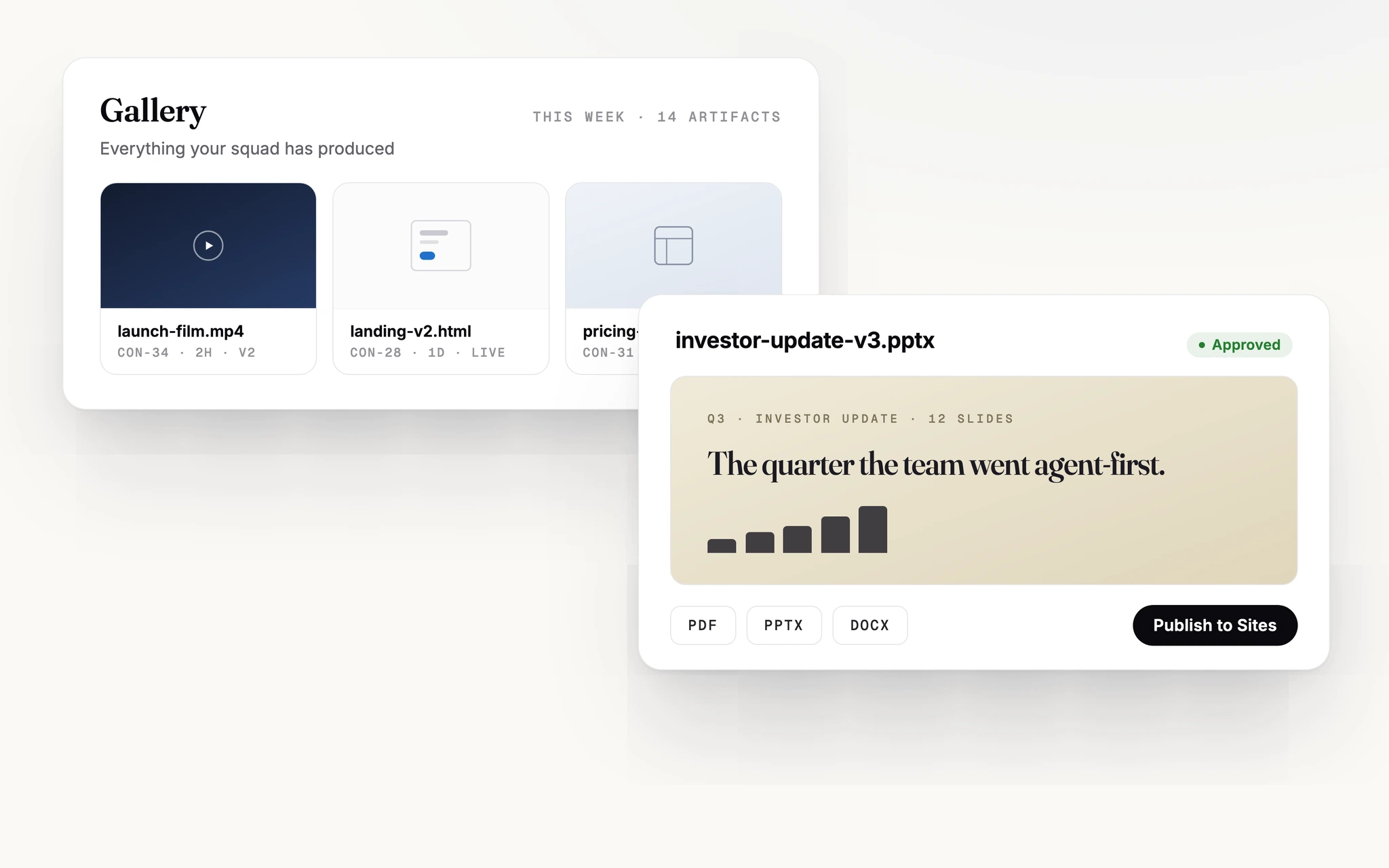
Browsing the wall
- Filter chips split artifacts by kind: Everything, Apps & sites, Decks, Documents, Media, and Working files.
- Grid or list view, with sorting by Newest or A–Z.
- Selecting a tile opens the preview panel with download, full-screen, and share controls.
Previews show real content, not icons
Text documents — markdown, plain text, CSV, code files, and Word documents — render as typeset content plates: the tile and the preview show the actual document content, set in the app's own typography and theme, instead of a generic file icon.
For .docx files the text is extracted server-side, so Word documents get a fast, readable text preview everywhere — including local and self-hosted setups. The preview notes "Text rendering — download for full formatting."; download the file when you need the original layout.
Full-fidelity Office embeds (Office Online) require a publicly reachable backend, because Microsoft's viewer fetches the document server-side. Against a local development server, Concierto shows an honest explanation instead of a broken frame — download the file to view it.
Ask an agent about a file
Every preview panel ends in an Ask agent bar. Pick an agent, press Ask agent, and a chat opens with a draft already composed: the file reference, the owning track as a context anchor, and a type-aware prompt — an image gets "critique the design, layout, and whether it matches the track brief", a document gets "summarize key points and flag anything missing", and so on. Edit the draft or send it as-is.
The same bar appears in the track attachment browser and in the Studio console, so wherever you're looking at a file, feedback is one action away.